Creating Dependent Comboboxes for BBQ2GO Using Excel VBA
When developing a streamlined process for customers to place orders through Uber Eats for BBQ2GO, I explored the use of dependent comboboxes in Excel VBA. The goal was to create a system that would allow users to easily select their preferred food options by narrowing down choices through multiple dependent lists. This would improve the customer experience by making the selection process more intuitive and efficient.
Problem Statement
The idea behind using dependent comboboxes is simple: each choice made by the user affects the subsequent options. For BBQ2GO, where I offer various menu items such as chopped brisket sandwiches, loaded brisket fries, and several dessert options, the challenge was to make the selection process dynamic. The database that stores this information had to be structured in a way that reflected the relationships between food categories (e.g., sandwiches, sides, and desserts), individual items (e.g., brisket sandwich, loaded fries), and any additional options (e.g., extra cheese, extra brisket). The use of dependent comboboxes would guide customers in selecting their preferred options in a structured and user-friendly manner.
Development Using Excel VBA
To implement this system, I utilized ActiveX controls in an Excel worksheet. The initial task involved creating a database within Excel to store the different categories and items offered by BBQ2GO. This database was divided into three main columns: "Food Type," "Item," and "Add-Ons." Each column represented a step in the ordering process, with the subsequent choices depending on the previous selection.
The VBA code needed to read the data from the "database" sheet and dynamically populate three comboboxes in the "output" sheet. These comboboxes were labeled as choice1 for food type, choice2 for item, and choice3 for add-ons. Upon opening the workbook, the VBA code automatically loads the database into an array and populates the first combobox with unique values from the "Food Type" column. The other two comboboxes are cleared to ensure that only relevant options are presented based on the user’s selection.
The following is a breakdown of the key VBA code sections used in this project:
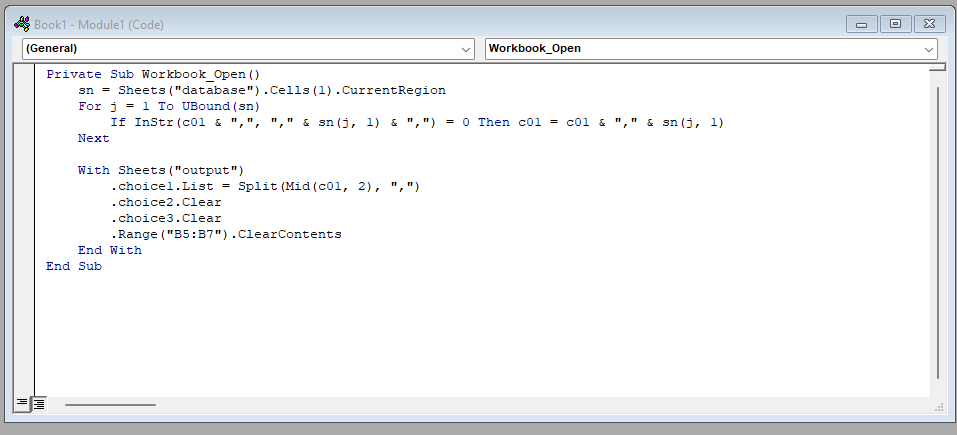
In this block, the code initiates by loading the data from the “database” sheet into an array sn. The Workbook_Open function ensures that the first combobox (choice1) is populated with unique values from the first column of the database (Food Type). I chose this approach because it simplifies the task of managing the comboboxes by automating the process upon opening the file, which ensures that the most current data is always available.
Dynamic Selection Process
The real challenge of this project was making the selection process dynamic. Every time a user makes a selection in one of the comboboxes, it triggers a change event. The following code snippet illustrates how this works:
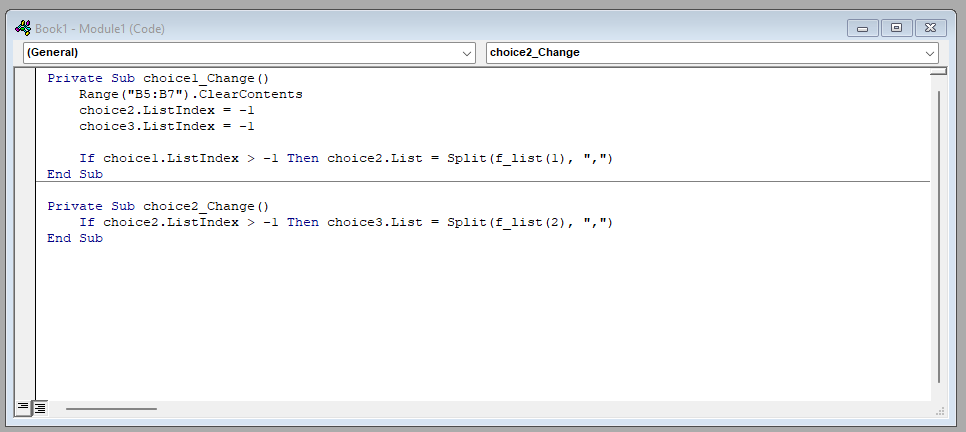
In this portion of the code, I ensure that when a user selects a food type (e.g., sandwiches), the next combobox (choice2) automatically updates to display only the relevant options (e.g., brisket sandwich, pulled pork sandwich). The choice2_Change event further refines the process by populating choice3 with relevant add-ons based on the selected item (e.g., extra cheese, extra brisket).
To handle the filtering of options, I wrote a custom function, f_list, which dynamically generates the appropriate list of options for each combobox based on the current selections. Here is the function:
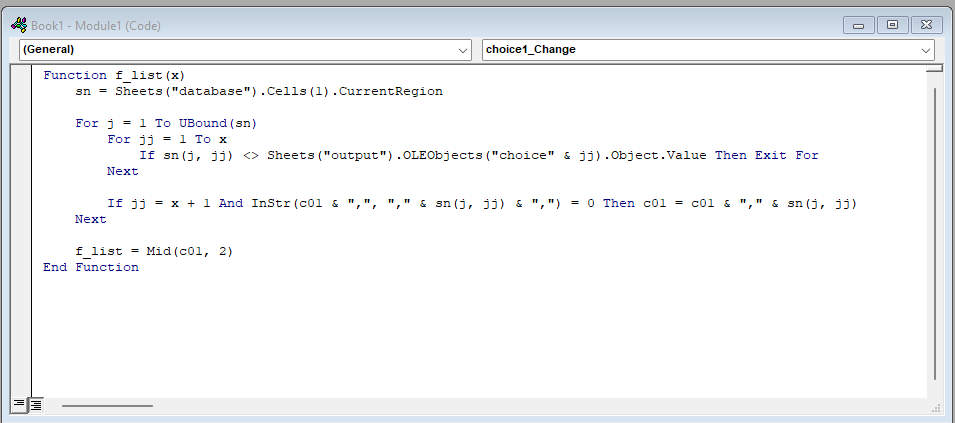
This function filters the dataset based on the user’s selection in the previous combobox and generates a new list of options for the next combobox. The result is a seamless, step-by-step selection process that narrows down the choices as the user progresses.
Benefits and Conclusion
The dependent combobox system I created for BBQ2GO offers several key advantages. First, it simplifies the ordering process by allowing users to make selections without being overwhelmed by too many options at once. Second, it ensures that only relevant options are displayed based on the user’s previous choices, reducing the likelihood of errors. Finally, by automating the data loading and updating processes, I ensure that the system is both efficient and easy to maintain.
In conclusion, the use of dependent comboboxes in Excel VBA was an effective solution for streamlining the ordering process for BBQ2GO’s Uber Eats customers. By implementing this system, I was able to create a dynamic and user-friendly interface that enhances the overall ordering experience.